By Nikhil Kumar. Last updated August 2026.
You open an Instagram post to read the comments, and the app shows you three, then a grey “View all 4,217 comments” link, then an infinite scroll that never quite loads them all. There is no way to see them at once, and no way to keep a copy.
An Instagram comments viewer solves both. It reads every public comment on a post, reel, or IGTV onto one screen so you stop scrolling, and the useful ones let you export to CSV, Excel, or JSON. For a single post, a free browser viewer does it. For many posts, big threads, or actual analysis, you send the post URL to a comments API and get the whole set back as structured data. On ScraperSocial that is one GET request, 1 credit per comment returned.
How do you see all comments on an Instagram post?
Read them through a viewer or an API instead of fighting the scroll. Instagram’s web and mobile feeds truncate a thread to two or three “Top” comments, then hide the rest behind a “View all” link and lazy-loading scroll that stalls on big posts. A comments viewer flattens the whole public thread onto one page; a comments API returns it as a JSON array in a single call, with the text, the handle, the like count, and the timestamp on each comment.
The first fix inside the app itself is the sort order. Instagram defaults to “Top”, which is an engagement ranking, not time order.
Switch the sort to “Newest” and you at least see comments as they arrive, which matters when you are watching a live post. But sorting does not solve the real problem, which is that the app never gives you the complete list or a way to save it.
That is where a viewer earns its place. Paste the post, reel, or IGTV URL and the entire public comment section renders at once, searchable and sortable, with none of the truncation the native app forces on you.
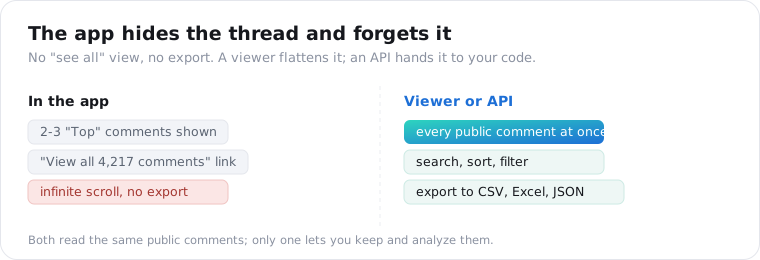
The catch that sends people looking for an alternative is that none of this exists natively. The app has no “see all” view and no export, so any comment section past a screen is effectively locked to scrolling unless you bring your own tool.
How do you export Instagram comments to CSV, Excel, or JSON?
Pull them as JSON from an API, then write the rows to a file. Instagram ships no export, so every exporter, browser tool and API alike, is reading the public comment section on your behalf and formatting it for you. An API gives you the cleanest path, because the response is already structured: an array of comment objects you can drop straight into CSV, a spreadsheet, or a database.
Here is the whole thing, pull and export, in one short script.
import csv, requests
r = requests.get(    "https://api.scrapersocial.com/v1/instagram/comments",    params={"url": "https://www.instagram.com/p/ABC123/", "limit": 50},    headers={"Authorization": "Bearer sk_live_..."},)comments = r.json()["data"]
with open("instagram_comments.csv", "w", newline="", encoding="utf-8") as f:    w = csv.DictWriter(f, fieldnames=["author", "text", "likes", "posted_at"])    w.writeheader()    for c in comments:        w.writerow({k: c.get(k) for k in w.fieldnames})
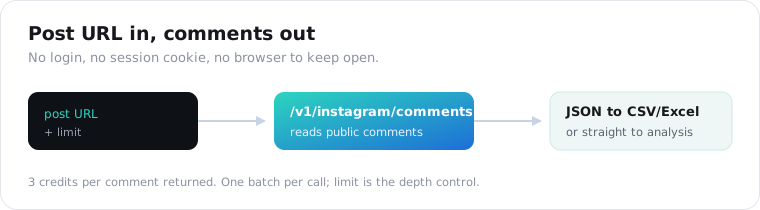
No Instagram login, no session cookie, no browser to keep open.
Swap the csv writer for pandas and you have an Excel file; keep the raw r.json() and you have JSON for a data pipeline. The API does not care what you do with the array once it is in your hands.
One parameter to set on every call is limit. It controls how many comments come back, and because you are billed per comment returned, limit is your budget dial, not an afterthought.
What does an Instagram comment look like as JSON?
A flat object per comment: text, author, likes, timestamp, and an id. Each comment carries Instagram’s own id (use it to deduplicate across pulls), the text exactly as posted with emoji and @mentions intact, the commenter’s author handle without the @, the likes on that comment, and an ISO posted_at. The array arrives in Instagram’s own ranking order, so the most-liked comments tend to lead rather than the newest.
{ "data": [ { "id": "17912345678901234", "text": "where do you get these? need one", "author": "someuser", "likes": 128, "posted_at": "2026-08-11T09:22:00Z" } ], "meta": { "count": 50 }, "request_id": "a18e4ef88ad4b00b"}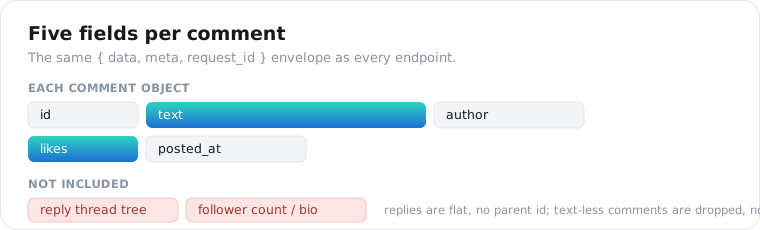
Two honest gaps to design around. Comments with no text, such as a lone sticker, are dropped rather than returned empty, so a limit of 50 can come back with fewer items. And replies arrive as their own objects in the same flat array with no parent id, so you get every reply’s words but cannot rebuild which comment it answered.
If you want the commenter’s follower count or bio, that is not here; this returns a handle only, which you enrich against the Instagram profile endpoints separately.
How much does pulling Instagram comments cost?
1 credit per comment, returned as one batch. You pay for the comments actually returned, so a default pull is cheap and a viral reel is not. There is no cursor and no second page: the limit you pass is the depth you get. A 50-comment call is 50 credits, about 25 cents on the monthly plan, and a post with comments turned off returns an empty array, free for your first 25 empty results each day.
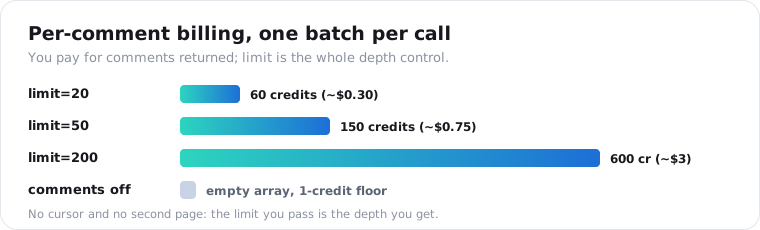
Here is the cost at a glance.
| You request | You get back | Credits | Monthly cost |
|---|---|---|---|
| limit=20 | up to 20 comments | 20 | ~$0.10 |
| limit=50 | up to 50 comments | 50 | ~$0.25 |
| limit=200 | up to 200 comments | 200 | ~$1.00 |
| comments disabled | empty array | 0 (up to 25 a day) | $0 |
If you only need the post’s total comment count rather than the text, the Instagram stats endpoint returns that in one flat call, far cheaper than paying per comment.
What can you do with exported Instagram comments?
Read an audience at a scale scrolling cannot reach. Once comments are a dataset instead of a feed, the comment text plus like count becomes a weighted signal: an objection with 400 likes matters more than one with none. That turns a comment section into raw material for sentiment analysis, FAQ mining, top-commenter and bot detection, and sourcing user-generated content.
The workflow I lean on most is FAQ mining. Pull the comments under a brand’s last 50 posts, cluster the repeated questions, and you have a support backlog and a content calendar in an afternoon.
A concrete version: pull the top 50 comments on a competitor’s last 20 launch posts, then count how often “price”, “shipping”, and “sizing” show up. You get their three biggest objections ranked by real audience weight, not a hunch. That used to be a survey; now it is one script and a few dollars of credits.
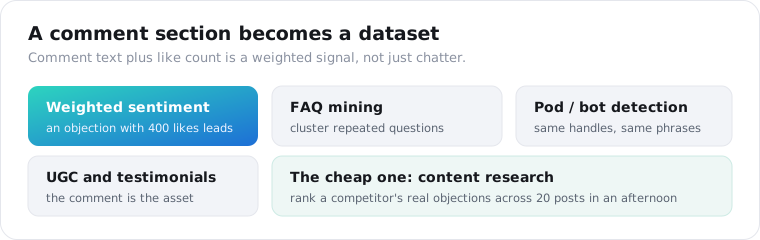
Spotting engagement pods and bots is the other quick win. The same handles posting the same phrases across unrelated posts jump out the moment you have the author field in a column, which is nearly impossible to see one comment at a time in the app.
And for sentiment or topic models, the raw text plus a posted_at per row is exactly the shape those pipelines want, no cleanup of the app’s UI required.
Free viewer tools or an API: which should you use?
Use a free tool for one post, an API for many. Free browser viewers like the ones that dominate this search are genuinely good for a single read: paste a URL, see the thread, download a CSV, done. They usually cap the free tier around 15 to 100 comments per post and add sentiment or top-commenter views on paid plans. The moment you need more than one post, a repeatable job, or comments inside your own code, an API is cheaper and scriptable.
Here is the current free field, with the catch each one carries.
| Tool | Free cap | Login needed | Export | Replies |
|---|---|---|---|---|
| ExportComments | ~100 per post | No | Excel | Included, indented |
| DolphinRadar | 15 per post | No | Excel + AI sentiment | Yes |
| Lection | Generous | Yes (browser extension) | CSV, Excel, JSON | Top-level only |
| ScraperSocial API | 25 free credits | No | JSON to anything | Flat, each a row |
Watch the login column. A browser-extension viewer that needs you signed into Instagram runs against your own account, which carries the same ban risk as any logged-in automation. A logged-out viewer or an API reads the public page without ever touching your account, which is the safer default for anything beyond a one-off.
The dividing line is repetition. A tool is a place you visit; an API is a function you call.
If you are exporting one competitor’s post to skim it, a browser tool wins on speed. If you are pulling comments across dozens of posts on a schedule, feeding a model, or joining the data to your own tables, the API wins, because there is no tab to babysit and no per-post click.
Analysis splits the same way. A viewer that bolts on sentiment hands you its verdict; the API hands you the raw text, so you run your own model, your own categories, and your own thresholds. For a quick gut-check the canned score is fine. For anything you report on, owning the raw comments is the difference between a number you trust and one you inherited.
The two are not rivals so much as different tools for different jobs. Our developer guide to scraping Instagram comments covers the API path in depth, and the TikTok comment viewer does the same on the other big short-video platform.
What are the limits and compliance notes?
Public only, replies flat, ranked not chronological, and personal data. A viewer or API reads public posts, reels, and IGTV the way a logged-out visitor sees them, so private accounts and deleted posts return nothing. Comments arrive in Instagram’s engagement order, not time order, so sort on posted_at yourself for a timeline. The official Instagram Graph API is not a substitute here: it only reads comments on posts your own account published, which is why competitor and market research goes through a data API.
Repeat calls hit the documented cache and return fast; pass fresh=true when you are monitoring a live post.
The compliance line is the one to take seriously. A comment is personal data about an identifiable person, handle attached, so anything you store falls under GDPR and CCPA. Keep only what you need, hash or drop the handle for aggregate work, keep a deletion path, and remember that automated collection can run against Instagram’s terms. This is not legal advice.
The short version
To read a few Instagram comments, switch the sort to Newest and scroll. To read them all or export to CSV, Excel, or JSON, send the post URL to a comments viewer or API and take back the whole public thread. It is 1 credit per comment, one batch per call, public posts only, ordered by Instagram’s engagement ranking. Use a free tool for a single post; use the API for many posts, big threads, or any analysis you want to automate.
Frequently asked questions
How do I see all comments on an Instagram post?
Instagram truncates the thread to two or three top comments and hides the rest behind a “View all” link and infinite scroll. To see them all, either switch the sort to Newest and scroll, which is fine for a small post, or paste the post URL into a comments viewer or send it to a comments API, which flattens every public comment onto one page or into one JSON array you can read, sort, and keep.
How do I export Instagram comments to CSV or Excel?
There is no export button in the Instagram app, so you go through a tool or an API. A free browser exporter reads one post and downloads a CSV. For many posts or a repeatable pipeline, send the post URL to an API like ScraperSocial’s /v1/instagram/comments, get the comments back as JSON, and write the rows to CSV or Excel in a few lines of code. Both read the same public comments.
Is there a free Instagram comments viewer?
Yes, several browser tools view and export a single post’s public comments for free, usually capped at around 15 to 100 comments per post before a paid tier. They suit a one-off read. For more than one post, larger threads, or automated analysis, an API is cheaper and scriptable: ScraperSocial includes 25 free credits, enough to export a real post’s top comments before you pay anything.
Can I view Instagram comments without an account?
Yes, for public posts. A comments viewer or API reads the public comment section the same way a logged-out visitor sees it, with no Instagram login and no app. It reaches only public posts, reels, and IGTV; private accounts and deleted posts return nothing. The official Instagram Graph API, by contrast, only reads comments on posts your own account published.
How many comments can I pull from one Instagram post?
As many as you set the limit to, subject to what the post actually has, returned as one batch. There is no cursor or page token on the ScraperSocial endpoint, so the limit you pass is the depth you get, and you are billed per comment returned at 1 credit each. Most sentiment or FAQ analysis is well served by the top 20 to 50 comments Instagram surfaces on a post.
Does an Instagram comments viewer show replies?
It shows the reply text but not the thread structure. Replies come back as their own objects in a flat array with no parent id, so you get every reply’s words, author, and timestamp, but you cannot reconstruct which top-level comment each reply sits under. For sentiment and keyword analysis that is fine; for mapping conversations it is a real limit to know up front.
Export a post’s comments
Pick one public post whose comments you actually want to read. Send its URL to the Instagram comments endpoint, take back the JSON, and write it to a CSV with the script above. The social listening guide turns it into a multi-post pipeline, the quickstart issues a key in a minute, and 25 free credits are enough to export a real post’s top comments before you decide.